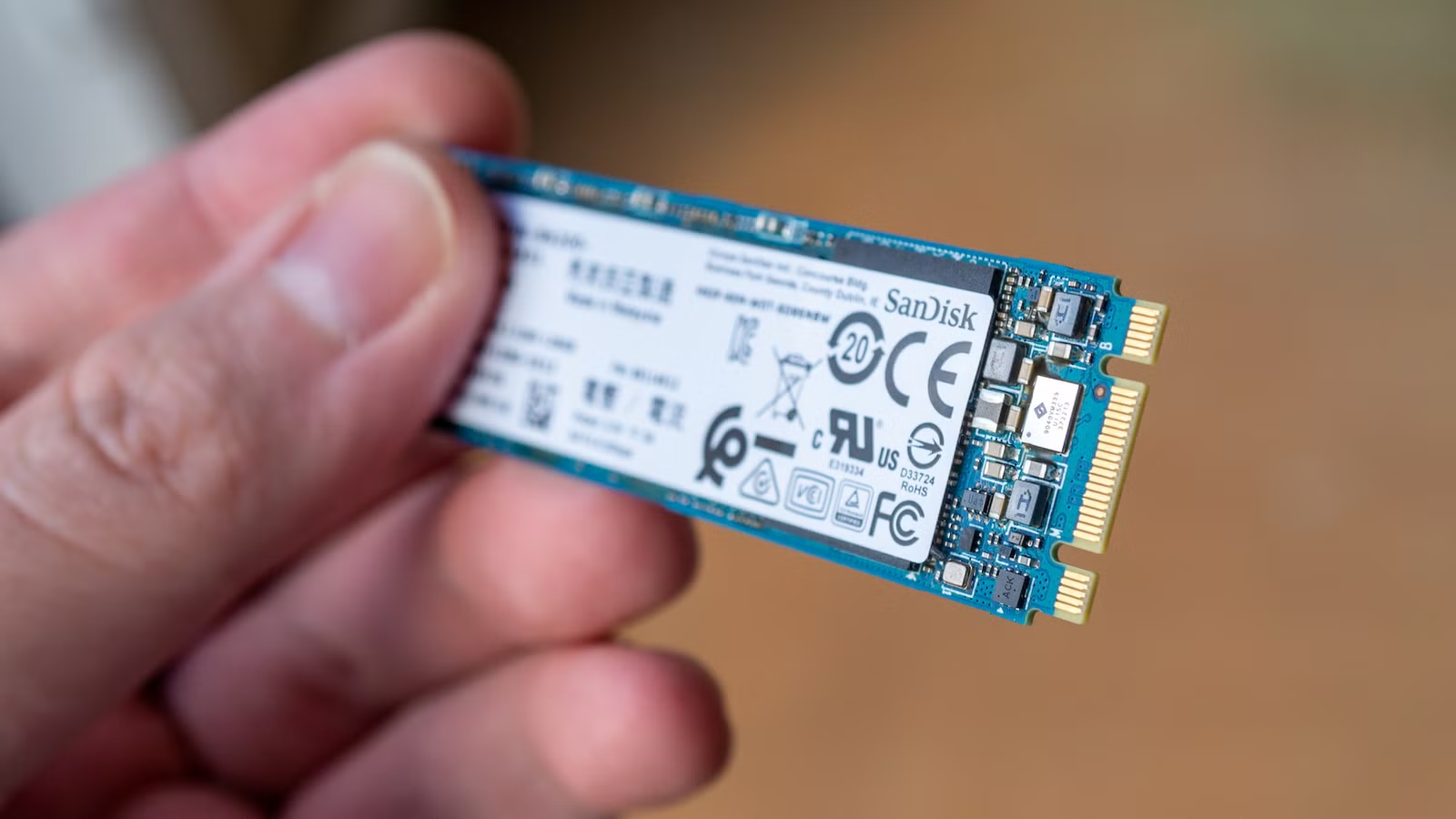
Many people ask, “how long do ssds last?” As solid-state drives become the go-to choice for faster and more reliable storage, it’s important to understand their lifespan. SSDs don’t have moving parts, but their lifespan depends on write frequency, usage patterns, and drive quality.
Understanding these factors can help you maximize the performance and lifespan of your SSD. In this article, we’ll explain the truth about SSD lifespan and share tips to make your drive last as long as possible.
How SSDs Store Data
SSDs (Solid State Drives) use NAND flash memory, a type of storage that retains data even when the power is off. NAND memory is organized into cells, pages, and blocks:




- Cells: The smallest unit, storing data as an electrical charge (1 bit per cell in some types).
- Pages: Groups of cells that can be written to at once (typically 4–16 KB).
- Blocks: Groups of pages; data can only be erased one block at a time.
When you write new data to a page that already contains data, the SSD first copies the existing data elsewhere, erases the block, and then writes the new data. This process makes SSDs different from traditional hard drives, which overwrite data directly on spinning disks. Modern SSDs also use wear leveling to spread write and erase operations evenly, helping the drive last longer.
Factors That Affect SSD Lifespan
The lifespan of an SSD depends on several key factors that determine how long it remains reliable and durable:
- NAND Flash Type
The type of NAND memory affects how many times its cells can be written and erased:
- SLC (Single-Level Cell): 1 bit per cell, highly durable, used in high-end SSDs for maximum performance.
- MLC (Multi-Level Cell): 2 bits per cell, moderate durability, ideal for mid-range SSDs.
- TLC (Triple-Level Cell): 3 bits per cell, lower durability, common in consumer SSDs for high capacity.
- QLC (Quad-Level Cell): 4 bits per cell, least durable, for budget or high-capacity SSDs.
Consumer SSDs often use TLC or QLC for cost-effectiveness, while enterprise drives may use SLC or MLC for higher durability.
- Write/Erase Cycles (P/E Cycles)
Each NAND cell can only endure a limited number of write/erase (P/E) cycles. The more data written, the faster the cells wear out.
- Operating Environment
- Temperature: High heat can damage NAND cells and reduce an SSD’s lifespan, so keeping it cool is essential.
- Humidity & Shocks: High moisture and physical impacts can reduce reliability.
- Wear Leveling
Wear leveling spreads write and erase operations evenly across all cells to prevent premature wear:
- Dynamic: Moves data to less-used blocks during regular writes.
- Static: Moves rarely changed data to less-used blocks to balance wear.
- Write Amplification
Sometimes SSDs write more data internally than the system requests. Higher write amplification increases P/E cycle usage, reducing lifespan. Efficient controllers, compression, and over-provisioning help minimize this effect.
- TBW (Terabytes Written) & DWPD (Drive Writes Per Day)
- TBW: The total amount of data the SSD can handle over its lifetime.
- DWPD: How many times the full drive capacity can be written per day over its warranty period.
Higher TBW or DWPD ratings indicate a longer-lasting drive.
- Over-Provisioning
Extra memory is reserved to improve performance and distribute wear more evenly. This reduces write amplification and extends the SSD’s lifespan.
Average Lifespan of an SSD
The lifespan of an SSD depends on how it’s used, the type of NAND memory it has, and the operating environment.
Endurance Ratings
- TBW (Terabytes Written): The total amount of data an SSD can write before it may fail.
- DWPD (Drive Writes Per Day): How many times the full drive capacity can be written daily during the warranty.
Expected Lifespan for Consumer SSDs
Under normal usage such as web browsing, document editing, and media consumption, most consumer SSDs last 5 to 10 years. The exact lifespan depends on factors like the type of NAND flash, daily data writes, and operating conditions such as temperature. Proper care, including minimizing unnecessary writes and keeping the drive cool, can help extend their lifespan.
Signs Your SSD May Be Failing
Spotting early signs of a failing SSD (Solid State Drive) is crucial to prevent data loss and ensure timely backups.
Key Warning Signs
- Frequent System Freezes or Crashes: Unexpected freezes, blue screens, or crashes can be a sign of SSD problems.
- Slow File Transfers or App Launches: Delays in opening files or programs may indicate the SSD is starting to wear out.
- Problems Accessing or Saving Files: Errors when opening, saving, or moving files may point to bad sectors or file system corruption.
- Drive Becomes Read-Only: If the SSD prevents writing new data, it’s a serious warning of potential failure.
- Frequent Boot Failures: Repeated startup problems can indicate bad blocks or other internal SSD issues.
- File System Errors or Corruption: File system errors or corrupted files can indicate SSD deterioration. Back up your data and check the drive’s health.
- Drive Not Detected or Unresponsive: If the system cannot recognize the SSD, a hardware failure may be occurring.
- High Wear Level or Reallocated Sectors: Monitoring tools (e.g., CrystalDiskInfo, Samsung Magician, or WD Dashboard) can reveal high wear or increasing reallocated sectors, indicating impending failure.
Recommended Actions
- Backup Data Immediately: Protect your important files before the SSD fails.
- Run Diagnostics: Use built-in or third-party tools to assess SSD health.
- Update Firmware: Keeping firmware up to date can prevent performance and reliability issues.
- Use Manufacturer Tools: Utilities from SSD makers provide detailed health reports and optimization options.
Regularly monitoring your SSD and responding to early warning signs helps safeguard your data and prevent sudden drive failure.
How to Maximize SSD Lifespan
To keep your SSD running efficiently and lasting longer, follow these best practices:
- Minimize Unnecessary Writes: Avoid activities that repeatedly write large amounts of data to the drive.
- Enable TRIM: Helps the SSD manage unused data blocks efficiently, boosting performance and extending its lifespan.
- Keep Free Space: Maintain enough unused space for over-provisioning, which allows the drive to handle writes more effectively.
- Disable Hibernation: Prevents large RAM dumps to the SSD, reducing unnecessary wear.
- Enable Write Caching: Improves write speeds and reduces immediate stress on the drive.
- Update Firmware: Regularly check for firmware updates to fix bugs and optimize performance.
- Limit Background Writes: Disable unnecessary indexing, caching, or automatic backups that generate constant data writes.
- Maintain a Cool Environment: Proper cooling prevents overheating, which can degrade SSD cells.
- Optimize Power Management: Reduce frequent power cycles and manage system energy efficiently.
SSDs are fast, reliable, and efficient storage solutions. Reducing unnecessary writes, keeping the SSD cool, and updating firmware help extend lifespan.
Myth vs. Reality: SSD Lifespan
Myth: SSDs fail quickly after just a few years.
Reality: Modern SSDs are designed to last and typically remain reliable for 5 to 10 years under normal use.
Why Modern SSDs Are Durable
- Advanced NAND Technology: Modern 3D NAND provides greater endurance and improved reliability compared to older NAND types.
- Wear-Leveling Algorithms: Evenly distribute data across memory cells to prevent any single cell from wearing out prematurely.
- Error Correction: Built-in mechanisms help maintain data integrity over time.
- Thermal Management: Features like heat control and thermal throttling prevent overheating and ensure consistent performance.
Modern SSDs are strong and dependable. By avoiding unnecessary data writes and keeping the drive cool, you can make it last much longer than expected.